How to Send Updated Files to Specific Customers
If you’ve uploaded a new version of a digital file and want to deliver it to only selected customers who previously purchased, follow the steps below:
1. Open the order
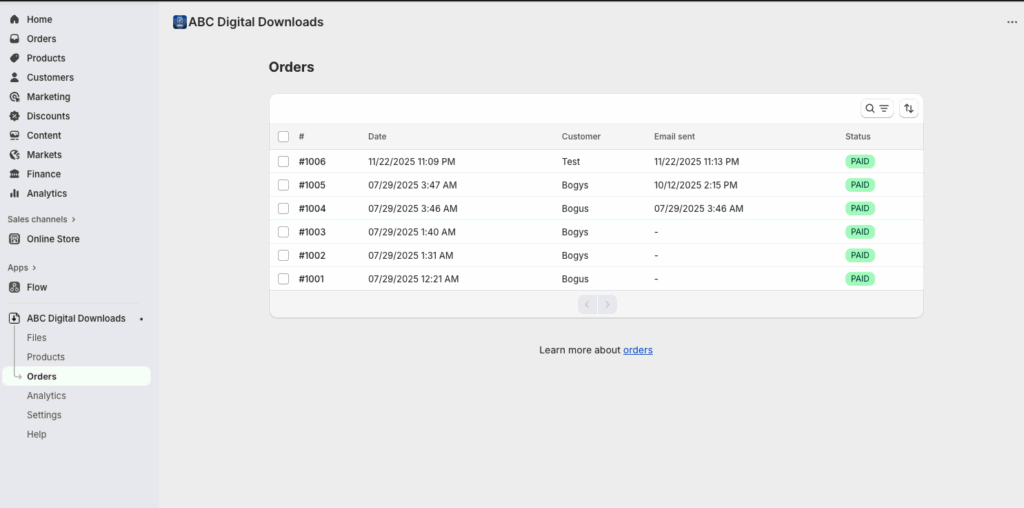
- In your Shopify Admin, go to Apps → ABC Digital Downloads → Orders
- Click the specific order number you wish to update.
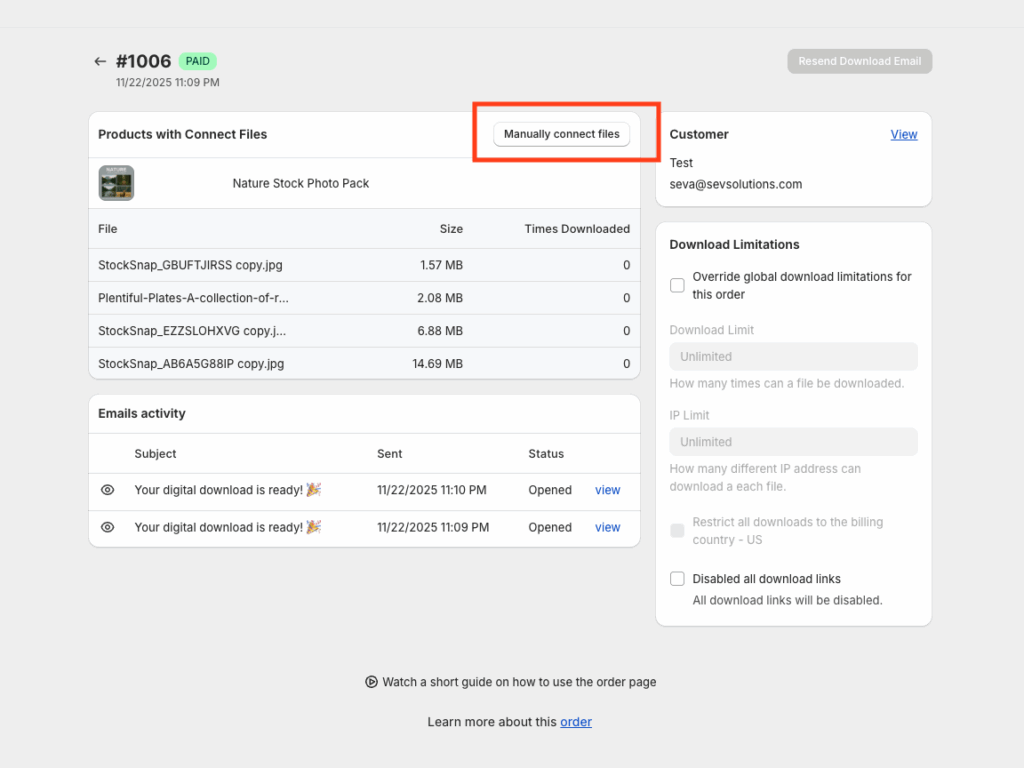
2. Click on “Manually connect files”
- On the order detail screen click the “Manually connect files” button.
3. Attach the updated file(s)
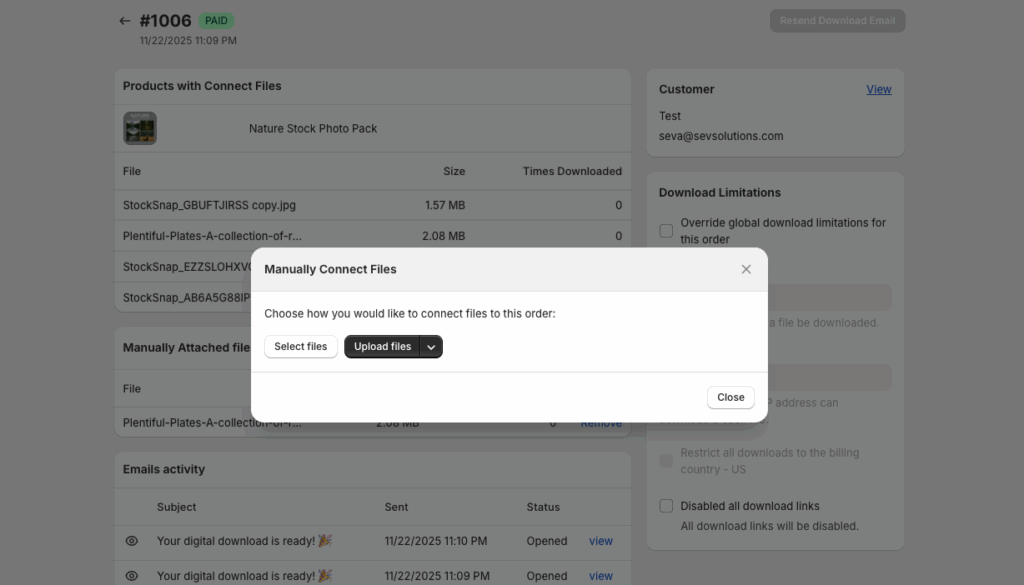
- A file selection interface appears: pick the new version of the file (or files) you want the customer to receive.
- You can either click on “select file” to upload a file currently uploaded to ABC or click on “Upload Files” to upload a file from your computer.
4. Send the updated download email
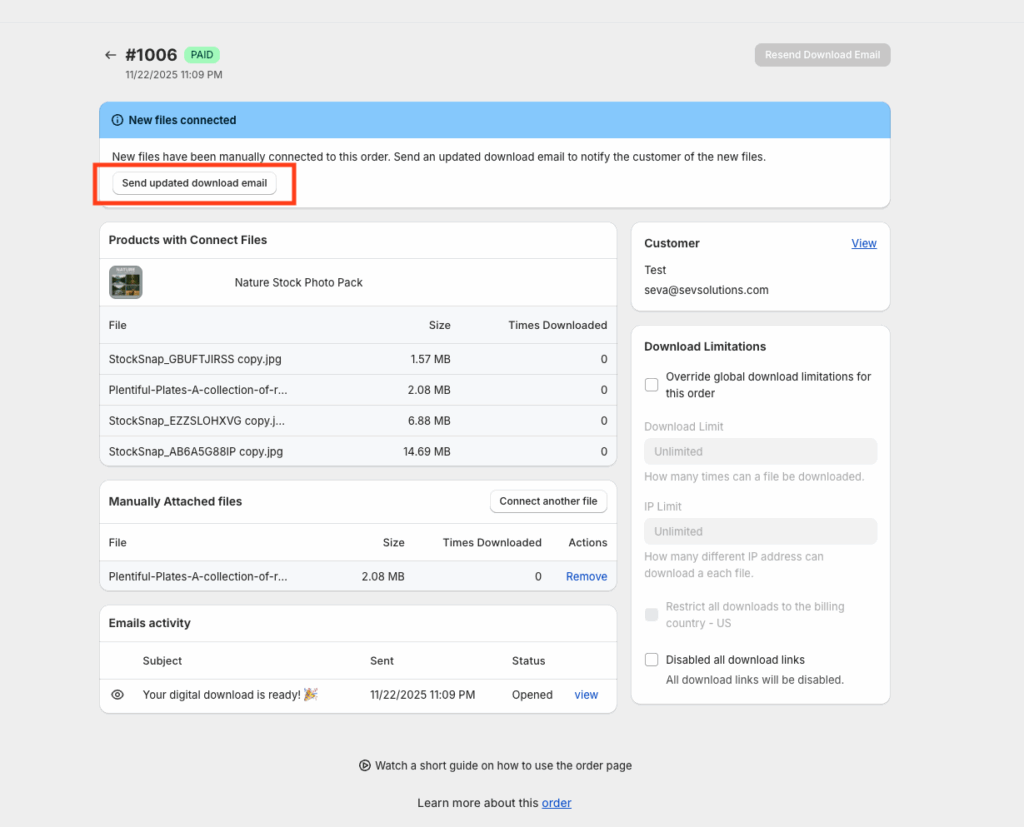
- After connecting the new file, click the “Send updated download email” button.
- This triggers an email to the customer, containing a refreshed download link pointing to the updated file version.
Additional Tips
- Filename versioning : When you upload the updated file, include a version marker (for example
ProductName_v2.pdforProductName_2025-11-22.zip), so the customer knows it’s the latest version. - Email content : Customize your email template for “New file(s) added to order” messages to clearly explain what changed (e.g., “Hi Jane — we’ve enhanced your file for better quality. Please click below to download the new version.”). For more information on this, click here.