Managing Settings
The Settings section in ABC Digital Downloads allows you to configure global preferences for your store’s digital products. From here, you can adjust order fulfillment behavior, control download access, set email and PDF templates, and customize how customers receive their files.
General Settings
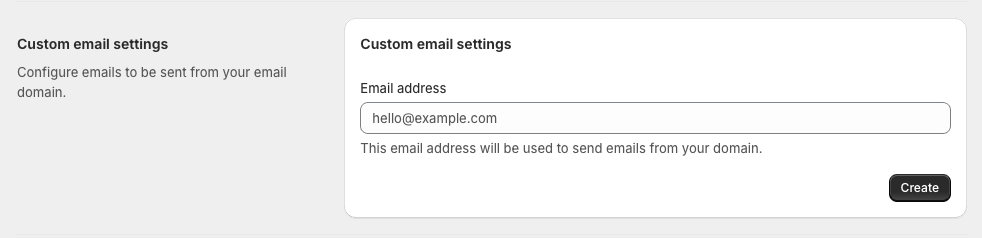
- Date & Time Format: Select how dates and times are displayed throughout the app.
- Automatically Fulfill Orders: When enabled, ABC automatically marks all digital products (with linked files) as fulfilled in Shopify orders.
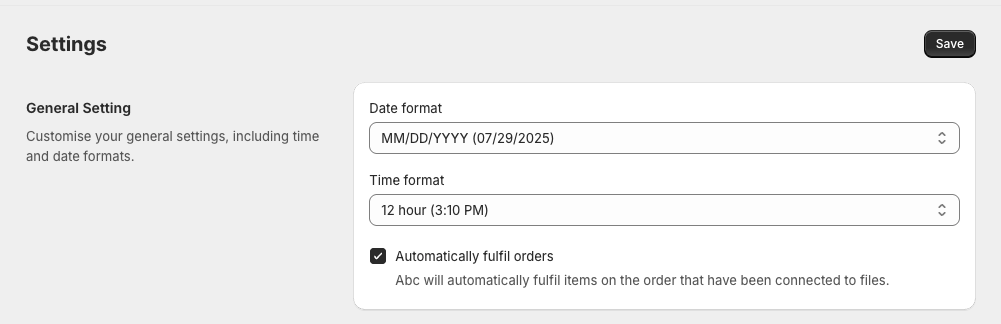
File Access Rules
Control where customers can see download links after purchase:
- Display on Thank You Page: Adds a download button to the order confirmation page. (Requires the ABC extension enabled in your theme)
- Display on Order Status Page: Shows download links in the order history page. (Requires the extension)
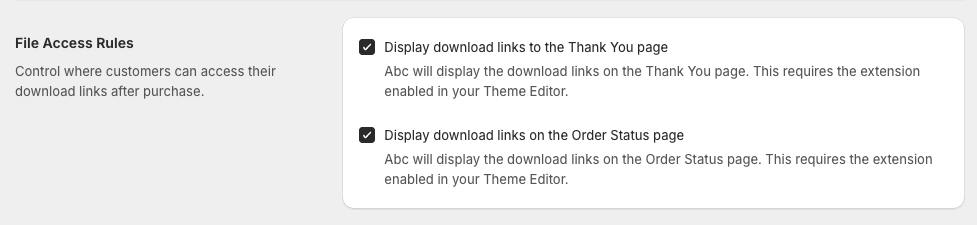
Downloads Settings
Manage global download restrictions and limits:
- IP Limit: Set how many different IP addresses can access a file per order (or leave as Unlimited).
- Download Limit: Specify how many times each file can be downloaded.
- Restrict by Billing Country: Prevents downloads from IPs outside the customer’s billing country.
- Block Fraudulent Orders: Stops download emails from being sent to orders flagged as “CANCEL” or “INVESTIGATE.”
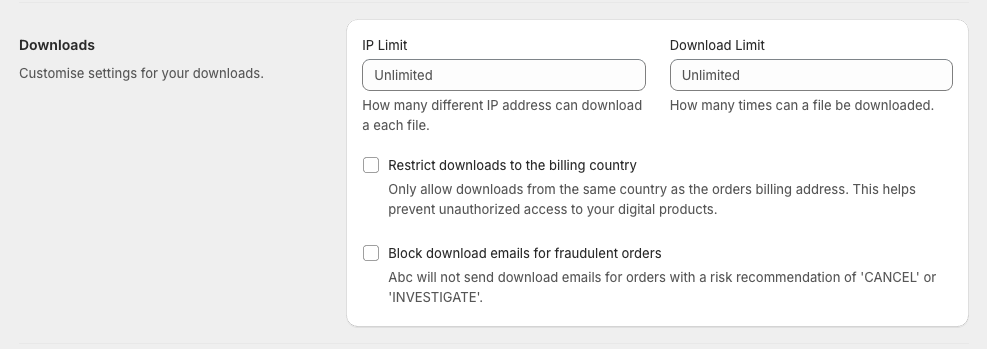
Custom Email Settings
Send emails from your own domain instead of the default ABC sender:
- Enter your email address and follow the steps to verify your domain.
- For details, see our full guide: Setting Up Custom Email Domain.
Email Templates
- Edit the emails sent to customers after they purchase digital products.
- You can customize templates for new orders and updated files.
- Restore default templates anytime if you need to start fresh.
🔎 For instructions, see Customizing Email Templates.

PDF Templates
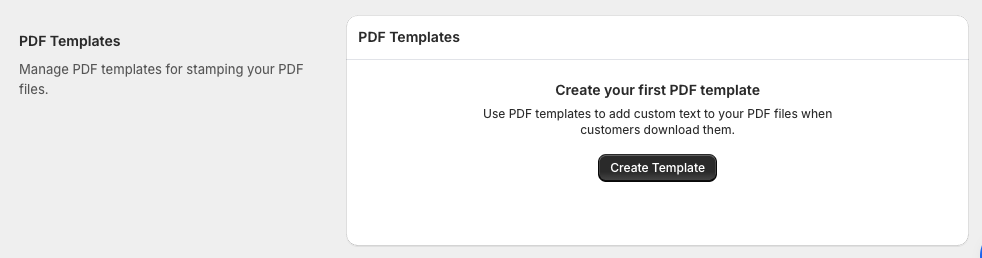
- Create and manage custom PDF templates to add text, watermarks, or branding to PDF files delivered to customers.
- Click Create Template to get started.
- For the full step-by-step tutorial, see How to Create and Manage PDF Templates.
✅ Next Steps
- Review and update these settings to match your store’s needs.
- Changes apply immediately and affect all future orders.
- Revisit the Settings section anytime to make adjustments.