How to Connect Files to Products
With ABC Digital Downloads, you can easily attach digital files (like eBooks, PDFs, videos, and more) to your Shopify products. When a customer purchases the product, the linked file will be automatically delivered to them.
Step 1: Go to the Products Tab
- Open ABC Digital Downloads in your Shopify admin.
- In the left-hand menu, click Products.
- You’ll see a list of your store’s products along with their status and any connected files.
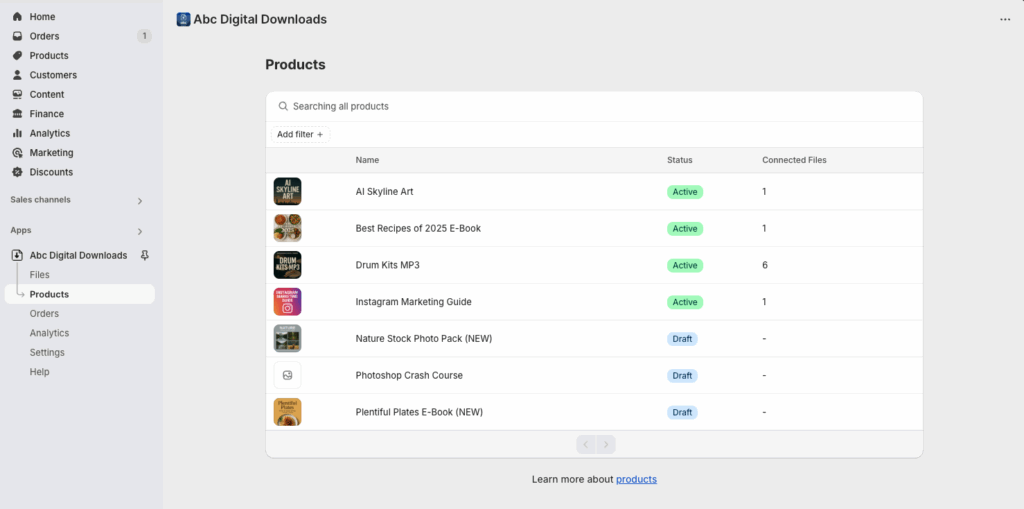
Step 2: Select a Product
- Click on the product you want to attach a file to.
- You’ll be taken to the product’s Connected Files page.
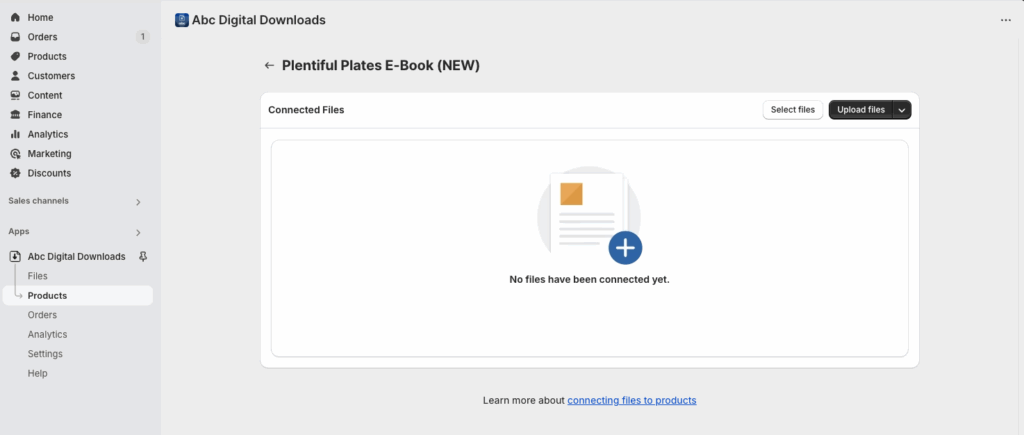
Step 3: Upload or Attach Files
- Drag and Drop: Drag your file (PDF, MP3, MP4, etc.) into the Connected Files area.
- Or: Click Upload Files and select a file from your computer.
- If you’ve previously uploaded files, you can also click Select Files to choose from existing files.
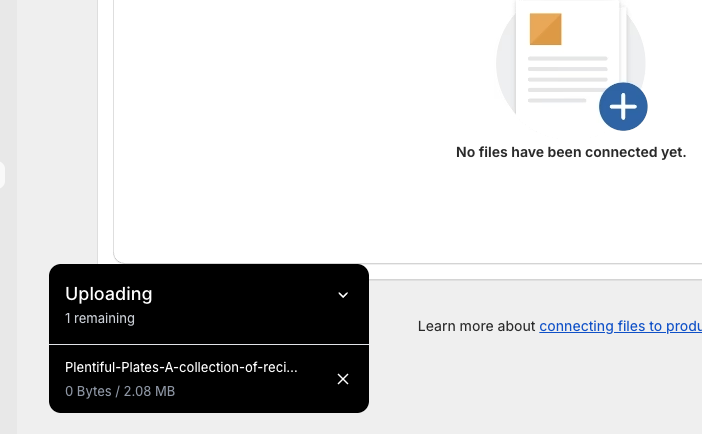
Step 4: Save and Confirm
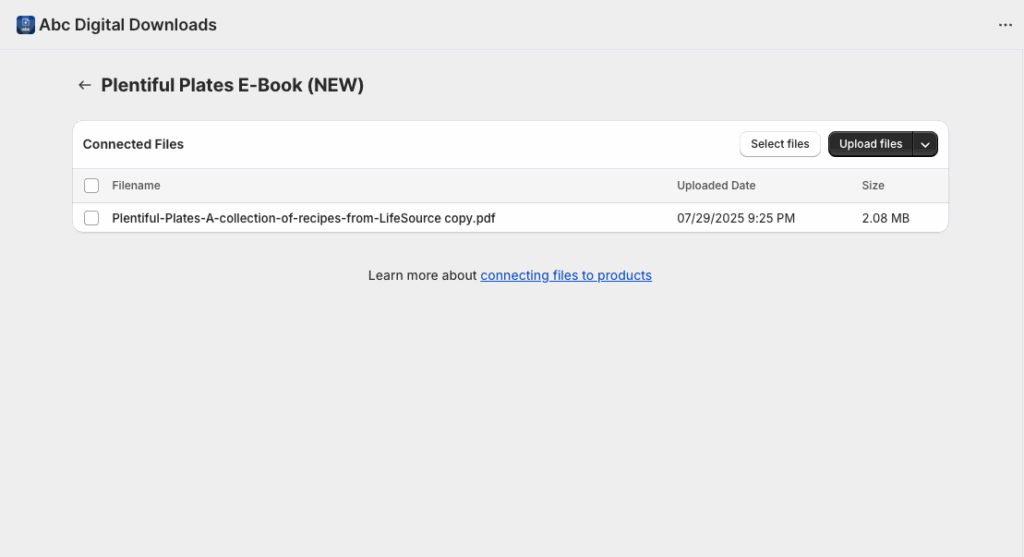
- After uploading or selecting your file, it will appear under Connected Files.
- The file is now linked to that product and will automatically be sent to customers after purchase.
✅ Tips
- You can attach multiple files to a single product.
- Files can be reused across multiple products without re-uploading.